Saturday, December 20, 2008

10 mistakes new Windows administrators make

Maybe you’re a brand new network admin. You’ve taken some courses, you’ve passed some certification exams, perhaps you even have a Windows domain set up at home. But you’ll soon find that being responsible for a company network brings challenges you hadn’t anticipated.

Or maybe you’re an experienced corporate IT person, but up until now, you’ve worked in a UNIX environment. Now — either due to a job change or a new deployment in your current workplace — you find yourself in the less familiar world of Windows.

This article is aimed at helping you avoid some of the most common mistakes made by new Windows administrators.

Note: This information is also available as a PDF download.

#1: Trying to change everything all at once

When you come into a new job, or start working with a new technology, you may have all sorts of bright ideas. If you’re new to the workplace, you immediately hone in on those things that your predecessors were (or seem to have been) doing wrong. You’re full of all the best practices and tips and tricks that you learned in school. If you’re an experienced administrator coming from a different environment, you may be set in your ways and want to do things the way you did them before, rather than taking advantage of features of the new OS.

Either way, you’re likely to cause yourself a great deal of grief. The best bet for someone new to Windows networking (or to any other job, for that matter) is give yourself time to adapt, observe and learn, and proceed slowly. You’ll make your own job easier in the long run and make more friends (or at least fewer enemies) that way.

#2: Overestimating the technical expertise of end users

Many new administrators expect users to have a better understanding of the technology than they do. Don’t assume that end users realize the importance of security, or that they will be able to accurately describe the errors they’re getting, or that they know what you mean when you tell them to perform a simple (to you) task such as going to Device Manager and checking the status of the sound card.

Many people in the business world use computers every day but know very little about them beyond how to operate a few specific applications. If you get frustrated with them, or make them feel stupid, most of them will try to avoid calling you when there’s a problem. Instead they’ll ignore it (if they can) or worse, try to fix it themselves. That means the problem may be far worse when you finally do become aware of it.

#3: Underestimating the technical expertise of end users

Although the above applies to many of your users, most companies will have at least a few who are advanced computer hobbyists and know a lot about technology. They’re the ones who will come up with inventive workarounds to circumvent the restrictions you put in place if those restrictions inconvenience them. Most of these users aren’t malicious; they just resent having someone else in control of their computer use — especially if you treat them as if they don’t know anything.

The best tactic with these users is to show them that you respect their skills, seek out their input, and let them know the reasons for the rules and restrictions. Point out that even a topnotch racecar driver who has demonstrated the ability to safely handle a vehicle at high speed must abide by the speed limits on the public roads, and it’s not because you doubt his/her technology skills that you must insist on everyone following the rules.

#4: Not turning on auditing

Windows Server operating systems have built-in security auditing, but it’s not enabled by default. It’s also not one of the best documented features, so some administrators fail to take advantage of it. And that’s a shame, because with the auditing features, you can keep track of logon attempts, access to files and other objects, and directory service access.


Active Directory Domain Services (AD DS) auditing has been enhanced in Windows Server 2008 and can be done more granularly now. Without either the built-in auditing or third-party auditing software running, it can be almost impossible to pinpoint and analyze what happened in a security breach.

#5: Not keeping systems updated

This one ought to be a no-brainer: Keeping your servers and client machines patched with the latest security updates can go a long way toward preventing downtime, data loss, and other consequences of malware and attacks. Yet many administrators fall behind, and their networks are running systems that aren’t properly patched.

This happens for several reasons. Understaffed and overworked IT departments just may not get around to applying patches as soon as they’re released. After all, it’s not always a matter of “just doing it” — everyone knows that some updates can break things, bringing your whole network to a stop. Thus it’s prudent to check out new patches in a testbed environment that simulates the applications and configurations of your production network. However, that takes time — time you may not have.

Automating the processes as much as possible can help you keep those updates flowing. Have your test network ready each month, for instance, before Microsoft releases its regular patches. Use


Windows Server Update Services (WSUS) or other tools to simplify and automate the process once you’ve decided that a patch is safe to apply. And don’t forget that applications — not just the operating system — need to be kept updated, too.

#6: Getting sloppy about security

Many administrators enforce best security practices for their users but get sloppy when it comes to their own workstations. For example, IT pros who would never allow users to run XP every day logged on with administrative accounts think nothing about running as administrators themselves while doing routine work that doesn’t require that level of privileges. Some administrators seem to think they’re immune to malware and attacks because they “know better.” But this over confidence can lead to disaster, as it does in the case of police officers who have a high occurrence of firearms accidents because they’re around guns all the time and become complacent about the dangers.

#7: Not documenting changes and fixes

Documentation is one of the most important things that you, as a network admin, can do to make your own job easier and to make it easier for someone else to step in and take care of the network in your absence. Yet it’s also one of the most neglected of all administrative tasks.

You may think you’ll remember what patch you applied or what configuration change you made that fixed an exasperating problem, but a year later, you probably won’t. If you document your actions, you don’t have to waste precious time reinventing the wheel (or the fix) all over again.

Some admins don’t want to document what they do because they think that if they keep it all in their heads, they’ll be indispensible. In truth, no one is ever irreplaceable — and by making it difficult for anyone else to learn your job, you make it less likely that you’ll ever get promoted out of the job.

Besides, what if you got hit by a truck crossing the street? Do you really want the company to come to a standstill because nobody knows the passwords to the administrative accounts or has a clue about how you have things set up and what daily duties you have to perform to keep the network running smoothly?

#8: Failing to test backups

One of the things that home users end up regretting the most is forgetting to back up their important data — and thus losing it all when a hard drive fails. Most IT pros understand the importance of backing up and do it on a regular schedule. What some busy admins don’t remember to do regularly is test those backups to make sure that the data really is there and that it can be restored.

Remember that making the backup is only the first step. You need to ensure that those backups will work if and when you need them.

#9: Overpromising and underdelivering

When your boss is pressuring you for answers to questions like “When can you have all the desktop systems upgraded to the new version of the software?” or “How much will it cost to get the new database server up and running?”, your natural tendency may be to give a response that makes you look good. But if you make promises you can’t keep and come in late or over budget, you do yourself more damage than good.

A good rule of thumb in any business is to underpromise and overdeliver instead of doing the opposite. If you think it will take two weeks to deploy a new system, give yourself some wiggle room and promise it in three weeks. If you’re pretty sure you’ll be able to buy the hardware you need for $10,000, ask for $12,000 just in case. Your boss will be impressed when you get the project done days ahead of time or spend less money than expected.

#10: Being afraid to ask for help

Ego is a funny thing, and many IT administrators have a lot invested in theirs. When it comes to technology, you may be reluctant to admit that you don’t know it all, and thus afraid — or embarrassed — to ask for help. I’ve know MCSEs and MVPs who couldn’t bear to seek help from colleagues because they felt they were supposed to be the “experts” and that their reputations would be hurt if they admitted otherwise. But plunging ahead with a project when you don’t know what you’re doing can get you in hot water, cost the company money, and even cost you your job.

If you’re in over your head, be willing to admit it and seek help from someone more knowledgeable about the subject. You can save days, weeks, or even months of grief by doing so.

The industry’s 10 best IT certifications

IT certifications boast numerous benefits. They bolster resumes, encourage higher salaries, and assist in job retention. But which IT certifications are best?

Technology professionals generate much debate over just that question. Many claim vendor-specific programs best measure a candidate’s skills, while others propose vendor-independent exams are the only worthy way of measuring real-world expertise. Still other observers believe the highest-level accreditations — Microsoft’s MCSE or new Architect Series certification, Cisco’s CCIE, etc. — are the only credentials that truly hold value.

Myself, I don’t fully subscribe to any of those mindsets. The best IT certification for you, after all, is likely to be different from that for another technology professional with different education, skills, and goals working at a different company in a different industry. For that reason, when pursuing any professional accreditation, you should give much thought and care to your education, experience, skills, goals, and desired career path.

Once a career road map is in place, selecting a potential certification path becomes much easier. And that’s where this list of the industry’s 10 best IT certifications comes into play. While this list may not include the 10 best accreditations for you, it does catalog 10 IT certifications that possess significant value for a wide range of technology professionals.

Note: This information is also available as a PDF download.

#1: MCITP

The new-generation Microsoft Certified IT Professional credential, or MCITP for short, is likely to become the next big Microsoft certification. Available for a variety of fields of expertise — including database developer, database administrator, enterprise messaging administrator, and server administrator — an MCITP validates a professional’s proven job-role capabilities. Candidates must pass several Microsoft exams that track directly to their job role before earning the new designation.

As with Microsoft’s other new-generation accreditations, the MCITP certification will retire when Microsoft suspends mainstream support for the platforms targeted within the MCITP exams. By matching the new certification to popular job roles, as has been done to some extent with CompTIA’s Server+ (server administrator), Project+ (project manager), and A+ (desktop support) certifications, Microsoft has created a new certification that’s certain to prove timely, relevant, and valuable.

#2: MCTS

The new-generation Microsoft Certified Technology Specialist (MCTS) helps IT staff validate skills in installing, maintaining, and troubleshooting a specific Microsoft technology. The MCTS certifications are designed to communicate the skills and expertise a holder possesses on a specific platform.

For example, candidates won’t earn an MCTS on SQL Server 2008. Instead, they’ll earn an MCTS covering SQL Server business intelligence (MCTS: SQL Server 2008 Business Intelligence), database creation (MCTS: SQL Server 2008, Database Development), or SQL server administration (MCTS: SQL Server 2008, Implementation and Maintenance).

These new certifications require passing multiple, tightly targeted exams that focus on specific responsibilities on specific platforms. MCTS designations will expire when Microsoft suspends mainstream support for the corresponding platform. These changes, as with other new-generation Microsoft certifications, add value to the accreditation.

#3: Security+

Security continues to be a critical topic. That’s not going to change. In fact, its importance is only going to grow. One of the quickest ways to lose shareholder value, client confidence, and sales is to suffer a data breach. And no self-respecting technology professional wants to be responsible for such a breach.

CompTIA’s Security+ accreditation provides a respected, vendor-neutral foundation for industry staff (with at least two years of experience) seeking to demonstrate proficiency with security fundamentals. While the Security+ accreditation consists of just a single exam, it could be argued that any IT employee charged with managing client data or other sensitive information should, at a minimum, possess this accreditation. The importance of ensuring staff are properly educated as to systems security, network infrastructure, access control, auditing, and organizational security principles is simply too important to take for granted.

#4: MCPD

There’s more to information technology than just administration, support, and networking. Someone must create and maintain the applications and programs that power organizations. That’s where the new-generation Microsoft Certified Professional Developer (MCPD) credential comes into play.

The MCPD accreditation measures a developer’s ability to build and maintain software solutions using Visual Studio 2008 and Microsoft .NET Framework 3.5. Split into three certification paths (Windows Developer 3.5, ASP.NET Developer 3.5, and Enterprise Applications Developer 3.5), the credential targets IT professionals tasked with designing, optimizing, and operating those Microsoft technologies to fulfill business needs.

A redesigned certification aimed at better-measuring real-world skills and expertise, the MCPD will prove important for developers and programmers. Besides requiring candidates to pass several exams, the MCPD certification will retire when Microsoft suspends mainstream support for the corresponding platform. The change is designed to ensure the MCPD certification remains relevant, which is certain to further increase its value.

#5: CCNA

The Cisco Certified Internetwork Expert (CCIE) accreditation captures most of the networking company’s certification glory. But the Cisco Certified Network Associate (CCNA) might prove more realistic within many organizations.

In a world in which Microsoft and Linux administrators are also often expected to be networking experts, many companies don’t have the budgets necessary to train (or employ) a CCIE. But even small and midsize corporations can benefit from having their technology professionals earn basic proficiency administering Cisco equipment, as demonstrated by earning a CCNA accreditation.

As smaller companies become increasingly dependent upon remote access technologies, basic Cisco systems skills are bound to become more important. Although many smaller organizations will never have the complexity or workload necessary to keep a CCIE busy, Cisco’s CCNA is a strong accreditation for technology professionals with a few years’ experience seeking to grow and improve their networking skills.

#6: A+

Technology professionals with solid hardware and support skills are becoming tougher to find. There’s not much glory in digging elbow-deep into a desktop box or troubleshooting Windows boot errors. But those skills are essential to keeping companies running.

Adding CompTIA’s A+ certification to a resume tells hiring managers and department heads that you have proven support expertise. Whether an organization requires desktop installation, problem diagnosis, preventive maintenance, or computer or network error troubleshooting, many organizations have found A+-certified technicians to be more productive than their noncertified counterparts.

Changes to the A+ certification, which requires passing multiple exams, are aimed at keeping the popular credential relevant. Basic prerequisite requirements are now followed by testing that covers specific fields of expertise (such as IT, remote support, or depot technician). The accreditation is aimed at those working in desktop support, on help desks, and in the field, and while many of these staffers are new to the industry, the importance of an A+ certification should not be overlooked.

#7: PMP

Some accreditations gain value by targeting specific skills and expertise. The Project Management Professional (PMP) certification is a great example.

The Project Management Institute (PMI), a nonprofit organization that serves as a leading membership association for project management practitioners, maintains the PMP exam. The certification measures a candidate’s project management expertise by validating skills and knowledge required to plan, execute, budget, and lead a technology project. Eligible candidates must have five years of project management experience or three years of project management experience and 35 hours of related education.

As organizations battle tough economic conditions, having proven project scheduling, budgeting, and management skills will only grow in importance. The PMI’s PMP credential is a perfect conduit for demonstrating that expertise on a resume.

#8: MCSE/MCSA

Even years after their introduction, Microsoft Certified Systems Engineer (MCSE) and Microsoft Certified Systems Administrator (MCSA) credentials remain valuable. But it’s important to avoid interpreting these accreditations as meaning the holders are all-knowing gurus, as that’s usually untrue.

In my mind, the MCSE and MCSA hold value because they demonstrate the holder’s capacity to complete a long and comprehensive education, training, and certification program requiring intensive study. Further, these certifications validate a wide range of relevant expertise (from client and server administration to security issues) on specific, widely used platforms.

Also important is the fact that these certifications tend to indicate holders have been working within the technology field for a long time. There’s no substitute for actual hands-on experience. Many MCSEs and MCSAs hold their certifications on Windows 2000 or Windows Server 2003 platforms, meaning they’ve been working within the industry for many years. While these certifications will be replaced by Microsoft’s new-generation credentials, they remain an important measure of foundational skills on Windows platforms.

#9: CISSP

As mentioned with the Security+ accreditation earlier, security is only going to grow in importance. Whatever an organization’s mission, product, or service, security is paramount.

(ISC)², which administers the Certified Information Systems Security Professional (CISSP) accreditation, has done well building a respected, vendor-neutral security certification. Designed for industry pros with at least five years of full-time experience, and accredited by the American National Standards Institute (ANSI), the CISSP is internationally recognized for validating a candidate’s expertise with operations and network and physical security, as well as their ability to manage risk and understand legal compliance responsibilities and other security-related elements.

#10: Linux+

While pursuing my first Microsoft certification 10 years ago, I remember debating the importance of Linux with several telecommunications technicians. They mocked the investment I was making in learning Microsoft technologies. These techs were confident Linux was going to displace Windows.

Well, didn’t happen. Linux continues to make inroads, though. The open source alternative is an important platform. Those professionals who have Linux expertise and want to formalize that skill set will do well adding CompTIA’s Linux+ certification to their resumes.

The vendor-neutral exam, which validates basic Linux client and server skills, is designed for professionals with at least six to 12 months of hands-on Linux experience. In addition to being vendor-neutral, the exam is also distribution neutral (meaning the skills it covers work well whether a candidate is administering Red Hat, SUSE, or Ubuntu systems).

Monday, October 6, 2008

Cisco IOS access lists: 10 things you should know

Takeaway: Access control lists (ACLs) are a fundamental part of working with routers. How much do you know about managing these vital gatekeepers? David Davis lists 10 things every administrator should know about working with Cisco IOS ACLs.

If you work with Cisco routers, you're more than likely familiar with Cisco IOS access control lists (ACLs). But that doesn't mean you know all there is to know about these important gatekeepers. Access lists are an integral part of working with routers, and they're vital to security.

Because ACLs are a fundamental part of router administration, I want to address 10 things you should know about working with these lists. If you're new to working with Cisco routers, this list offers a good foundation to get you started. But even if you've worked with Cisco routers for a while, it never hurts to review the basics—you might even learn something new.

So, without any further ado, here are 10 things you need to know about Cisco IOS access lists, beginning with the basic definition of an ACL.

What is an access control list?

In the Cisco IOS, an access control list is a record that identifies and manages traffic. After identifying that traffic, an administrator can specify various events that can happen to that traffic.

What's the most common type of ACL?

IP ACLs are the most popular type of access lists because IP is the most common type of traffic. There are two types of IP ACLs: standard and extended. Standard IP ACLs can only control traffic based on the SOURCE IP address. Extended IP ACLs are far more powerful; they can identify traffic based on source IP, source port, destination IP, and destination port.

What are the most common numbers for IP ACLs?

The most common numbers used for IP ACLs are 1 to 99 for standard lists and 100 to 199 for extended lists. However, many other ranges are also possible.

  • Standard IP ACLs: 1 to 99 and 1300 to 1999
  • Extended IP ACLs: 100 to 199 and 2000 to 2699

How can you filter traffic using ACLs?

You can use ACLs to filter traffic according to the "three P's"—per protocol, per interface, and per direction. You can only have one ACL per protocol (e.g., IP or IPX), one ACL per interface (e.g., FastEthernet0/0), and one ACL per direction (i.e., IN or OUT).

How can an ACL help protect
my network from viruses?

You can use an ACL as a packet sniffer to list packets that meet a certain requirement. For example, if there's a virus on your network that's sending out traffic over IRC port 194, you could create an extended ACL (such as number 101) to identify that traffic. You could then use the debug ip packet 101 detail command on your Internet-facing router to list all of the source IP addresses that are sending packets on port 194.

What's the order of operations in an ACL?

Routers process ACLs from top to bottom. When the router evaluates traffic against the list, it starts at the beginning of the list and moves down, either permitting or denying traffic as it goes. When it has worked its way through the list, the processing stops.

That means whichever rule comes first takes precedence. If the first part of the ACL denies traffic, but a lower part of the ACL allows it, the router will still deny the traffic. Let's look at an example:

Access-list 1 permit any
Access-list 1 deny host 10.1.1.1
Access-list 1 deny any

What does this ACL permit? The first line permits anything. Therefore, all traffic meets this requirement, so the router will permit all traffic, and processing will then stop.

What about traffic you don't specifically address in an ACL?

At the end of an ACL is an implicit deny statement. Whether you see the statement or not, the router denies all traffic that doesn't meet a condition in the ACL. Here's an example:

Access-list 1 deny host 10.1.1.1
Access-list 1 deny 192.168.1.0 0.0.0.255

What traffic does this ACL permit? None: The router denies all traffic because of the implicit deny statement. In other words, the ACL really looks like this:

Access-list 1 deny host 10.1.1.1
Access-list 1 deny 192.168.1.0 0.0.0.255
Access-list 1 deny ANY

Can I name an ACL?

Numbers—who needs numbers? You can also name your ACLs so you can more easily identify their purpose. You can name both standard and extended ACLs. Here's an example of using a named ACL:

router(config)# ip access-list ?
extended Extended Access List
log-update Control access list log updates
logging Control access list logging
resequence Resequence Access List
standard Standard Access List
router(config)# ip access-list extended test
router(config-ext-nacl)#
router(config-ext-nacl)# 10 deny ip any host 192.168.1.1
router(config-ext-nacl)# exit
router(config)# exit
router# show ip access-list
Extended IP access list test
10 deny ip any host 192.168.1.1

What's a numbering sequence?

In the "old days," you couldn't edit an ACL—you could only copy it to a text editor (such as Notepad), remove it, edit it in notepad, and then re-create it. In fact, this is still a good way to edit some Cisco configurations.

However, this approach can also create a security risk. During the time you've removed the ACL to modify it, the router isn't controlling traffic as needed. But it's possible to edit a numbered ACL with commands. Here's an example:

router(config)# access-list 75 permit host 10.1.1.1
router(config)#^Z
router# conf t
Enter configuration commands, one per line. End with CNTL/Z.

router(config)# ip access-list standard 75

router(config-std-nacl)# 20 permit any
router(config-std-nacl)# no 10 permit 10.1.1.1
router(config-std-nacl)#^Z


router# show ip access-lists 75
Standard IP access list 75
20 permit any
router#

How else can I use an ACL?

ACLs aren't just for filtering traffic. You can also use them for a variety of operations. Let's look at some of their possible other uses:

    • To control debug output: You can use the debug list X command to control debug output. By using this command before another debug command, the command only applies to what you've defined in the list.
    • To control route access: You can use a routing distribute-list ACL to only permit or deny certain routes either into or out of your routing protocol.
    • As a BGP AS-path ACL: You can use regular expressions to permit or deny BGP routes.
    • For router management: You can use an ACL to control which workstation or network manages your router with an ACL and an access-class statement to your VTY lines.
    • For encryption: You can use ACLs to determine how to encrypt traffic. When encrypting traffic between two routers or a router and a firewall, you must tell the router what traffic to encrypt, what traffic to send unencrypted, and what traffic to drop.

To wrap up this review, I'll leave you with one last tip: Don't forget to use remark statements in your ACLs. They'll come in handy when you have to troubleshoot something later.

Source: http://articles.techrepublic.com.com/5100-10878_11-5731134.h

Saturday, August 16, 2008

What CAN’T Linux do?

2. Installing Linux on a Mac. I was just reading the most recent Wired magazine that has a good story on how Apple has created a very closed system where only Apple software plays on Apple hardware. Hello Yellow Dog Linux! I have run Linux on an iBook - it was sweet.
3. Routers. We all know that Linux works well on routers. OpenWRT installs well on many Linksys routers.
4. For fish tanks. Yes you read it correctly. At one point I had a small Linux box set up to control the lighting and wave action on a reef tank. This was done with the old X10 remote system and bottle rocket software.
5. Linux on a watch. Yes, IBM did it back in 2000.
6. Linux on mobile devices. Back in 2000, I was the proud owner of one of the short-lived Agenda handheld devices that used Linux. Not only did this serve as a PDA, but I also managed to get a light-weight version of Apache installed and ran a small Web site from the device. And, hopefully, soon we’ll see the Google Android platform!!!
7. Car navigation. In 2004 Sony introduced three Linux-based in-car navigation systems.
8. Home security. A small startup in Britain called AlertMe sells a Linux-based home monitoring system that allows you to monitor your home from any Web-enabled phone or Web browser.
9. NAS. There are plenty of companies using Linux on network attached storage devices.
10. Gaming platforms. Not just the PS3s as mentioned before. Linux has been sucessfully installed on: Gamecube, Gameboy, PS1, PS2, Sega Genesis, N64, Nintendo DS, Nintendo Wii, Super Nintendo, Xbox.
11. Airplane black boxes. Montavista uses a Carrier Grade Linux to power in-flight recorders.
12. Brain surgery. Yep. This Linux-powered robot helps in brain surgery.

That’s the short list.

Wednesday, July 30, 2008

Run Ubuntu from inside Windows with Wubi

It sounds like what a three-year-old would call their ratty, old teddy bear, but Wubi is actually an application that allows Ubuntu to be installed from within Windows — an alternative to running a virtual machine or running from a Live CD version.

The application they developed, known as Wubi, is an Unbuntu Linux installer that runs inside Windows and looks to Windows like just another application. Most of the files Wubi uses to load and run Ubuntu Linux reside in a single folder; the installer does not modify a system’s disk partitions, bootloader, or any other vitals; and the whole affair uninstalls just as quickly and painlessly. (bmighty.com)

I hadn’t heard of this before, but if you’re trying to get Windows users to give Linux a chance, it might be a good training-wheel option. Has anyone else heard of this or tried it out?

In a related story, Michael Horowitz is explaining to Windows users, “Why you want (and need) a Linux Live CD.” Horowitz is suggesting Live CDs as useful tools for troubleshooting and recovering files from Windows when it won’t boot or gets infected with malware. Linux to the rescue!


**ubuntu applications


10 ways to make Linux boot faster

#1: Disable unnecessary services Depending upon the use of the machine, plenty of services won't be needed. Using Linux just for a desktop? Then you won't need sendmail, httpd, and many other services. If your server is only a Web server, you can shut off many services as well. To do this, you can go to the Administration menu and take a look at the Services entry. Just deselect all of the services you don't want to start.

#2: Disable unnecessary kernel modules If your desktop is wired to the Ethernet, you don't need to have a wireless kernel module loaded. This task is a bit more difficult and will require a kernel recompilation, which is not the easiest task to undertake. To do this, you will need the kernel sources. Then, follow the standard steps for compiling a kernel. The difference is that you're going to go through your system and disable all of the modules you don't need. The best way to find out what kernel modules currently install and run on your system is to install Bootchart. Not only will this give you a good list of modules, it will illustrate for you what is happening during your system boot. You can also issue the command chkconfig --list | grep 3:on to find out what services are running. Once you know what loading modules you don't need, you can remove them during a kernel recompilation. While you're at it, compile the kernel to exactly match your architecture.

#3: Use a lightweight window manager instead of GNOME or KDE I plug smaller footprint window managers for a reason -- they drastically reduce graphical boot time. Instead of having to wait that extra 30 to 60 seconds for GNOME or KDE to boot up, why not wait two to 10 seconds for Enlightenment or XFCE to boot up? Not only will they save you boot time, they will save your memory and the headache of dealing with bloatware.

#4: Use a text-based login instead of a graphical login Most of my Linux machines boot to run level 3 instead of run level 5. This will halt at the text-based login, where I only have to log in and issue startx to start my desktop of choice. The graphical logins do two things: increase load times and create headaches trying to recover from an X windows fubar.

#5: Use a lighter-weight distribution Instead of loading the heavyweight Fedora, why not try a Gentoo, Arch, or Puppy Linux? The boot times for these smaller distributions are far faster than the more bloated Fedora (and even Ubuntu). Of the larger distributions, OpenSuSE claims to boot the fastest, but I have not personally tested this. Between the latest Fedora and Ubuntu, Ubuntu blows Fedora's boot times away (and that is out of the box).

#6: Use an OpIf you're savvy enough to upgrade your PC's firmware, you might consider migrating to an open source BIOS. One caveat to using open firmware is that it allows Linux to actually initialize the hardware as it boots (instead of relying on the BIOS). On top of that, many open BIOSes can be configured to meet your machine's specific needs. If you don't go the open BIOS route, you can at least configure your BIOS to not search for a floppy drive that's not there or to boot directly to the first hard drive (instead of the CD drive first).


#7: Avoid dhcp If you are working on a home network (or a small business network) where address lease isn't a problem, go with static IP addresses. This will keep your machine from having to call out to a dhcp server to get an IP address. If you take this approach, make sure you configure your /etc/resolve.conf to reflect your DNS server addresses as well.

#8. If you can spare it, get rid of hotplug Hotplug is the system that allows you to plug in new devices and use them immediately. If you know your server won't need this system, delete it. This will cut down on boot time. On many systems, hotplugging consumes much of the boot time. Removing hotplug will vary depending upon the distribution you use. NOTE: udev has, for the most part, replaced hotplug. But if you're running an older distribution, this does apply.

#9. If you are REALLY daring, you could give initng a try The initng system serves as a replacement for the sysvinit system and promises to drastically decrease boot times in UNIX-like operating systems. If you would like to see the initng system in action, you can give the Pingwinek livecd a try.

#10. Use a hack with Debian If you're using Debian, there is a simple hack you can use to switch your startup scripts to run in parallel. If you look at the /etc/init.d/rc script, you will see: CONCURRENCY=none around line 24. Change this line to CONCURRENCY=shell and you should see a reduction in boot times. That's about it. Of course there are always more and better hacks out there. But the above should mostly cover everything. The good news is that you're most likely already running Linux, so the burden of boot times is generally eased by the infrequency of reboots.

Sunday, June 1, 2008

Top 26 Tech Visionaries

Without the imagination and hard work of these fifty innovators, technologies you use every day might never have been invented.

Christopher Null, PC World


1. Jack Kilby and Robert Noyce

Robert Noyce (left) and Jack Kilby
Photograph: Courtesy of Texas Instruments and Intel

Unlike most of the other multiperson entries on our list, Robert Noyce (left) and Jack Kilby didn't work together. But their common invention is still utterly crucial. In 1959, both men came up with the first integrated circuits--Kilby while he was at Texas Instruments, and Noyce at Fairchild Semiconductor. The IC solved the problem of size that got worse and worse as the need to jam additional transistors into a device grew more and more critical. Packing them all into a single chip effectively ended the era of the room-size computer. Ultimately, Noyce's design based on silicon, rather than Kilby's based on germanium, became the standard--one that we still use today--but both designs were instrumental in pushing the technology forward. Kilby and Noyce are often overlooked, but the importance of their contribution to technology cannot be overstated. Nothing else on this list could exist without the underpinning of the integrated circuit.

2. Sergey Brin and Larry Page

Larry Page (left) and Sergey Brin

What is the defining contribution to technology made by Larry Page (left) and Sergey Brin, the fathers of Google? The company is the single most important business in Silicon Valley today, but of course search engines had existed long before Google came along. What impressed so many early fans was Google's relentless pursuit of refinement and accuracy in its search algorithm: Whereas other search engines' results tended to be laden with spam, Google's were generally on target. The company had lots of other tricks up its sleeve as well: The rapidly expanding Google universe now offers dozens of productivity and entertainment tools--from word processing to video--most of them free, underwritten by the company's ubiquitous ad-serving system.


Bill Gates (#3) to Shawn Fanning (#10)

Bill Gates
Photograph: Courtesy of Microsoft
3. Bill Gates

The world's richest man (well, depending on that day's stock price) is also one of its most noteworthy technologists--a guy who dropped out of Harvard to launch Microsoft, a company that all techies are intimately familiar with, like it or not. No hands-off executive, Bill Gates has been involved with Microsoft product development at an incredibly detailed level over the company's entire 30-year history. Though he'll continue to serve as the company's chairman, Gates will effectively leave Microsoft this July to focus full-time on his nonprofit endeavor, the Gates Foundation, which he has endowed with an eye-popping $29 billion to support global health and learning. Critics love to caricature Gates as a ruthless corporate tyrant who rules the tech industry with an iron fist, but evidently he has a conscience and a social vision too.

4. Steve Jobs

Steve Jobs
Photograph: Courtesy of Apple

The once and future King of Apple, Steve Jobs is familiar to even the most casual technophile. Jobs lays claim to two critical moments in tech history. First, with the original Apples, he pioneered the idea that computers belong in the home; and then, 20 years later, he convinced the world that people ought to carry their (digital) music with them everywhere they go. Apple may not have invented the PC, and it certainly didn't invent the MP3 player, but Jobs's famous "reality distortion field" has proved that who got there first is sometimes less important than what they brought with them. Today, after more than one brush with corporate death, Apple is bigger than ever, boasting market share that the company hadn't seen since the 1980s.

5. Tim Berners-Lee

Tim Berners-Lee

No bones about it: You wouldn't be reading this if not for Tim Berners-Lee and his 1989 invention, the World Wide Web. Everything from URL structure to hyperlinks were part of Berners-Lee's original specifications; and though they've been extensively revised (in large part under his guidance as director of the World Wide Web Consortium), they remain in use today. Berners-Lee continues to be a key figure in the development of Web standards, and these days he spends his time developing what many think is the next step for the Internet: The Semantic Web.


6. Ray Tomlinson

Ray Tomlinson

In 1971 Ray Tomlinson sent the message that would ultimately be heard 'round the world: An e-mail from one ARPANet host to another. When you open your e-mail program and see that your inbox has 112 unread messages, you may not feel like thanking Tomlinson, but imagine where digital communications would be without e-mail. Tomlinson also came up with the idea of using the @ symbol to separate the username from the host name in an e-mail address.


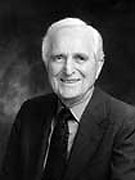
7. Douglas Engelbart

Douglas Engelbart

Quick, click on this link. You now understand the importance of Doug Engelbart's creation, the computer mouse. Engelbart patented the idea of his "X-Y position indicator for a display system" in 1967, and also nicknamed the device the mouse (owing to its tail). Though it's hard to imagine working without one now, the mouse didn't catch on for more than a decade, until Apple computers started using them. Engelbart didn't stop at one invention, either: He and his research lab also developed an early online storage system--and even demonstrated videoconferencing back in 1968.

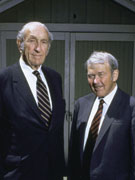
8. Bill Hewlett and Dave Packard

Dave Packard (left) and Bill Hewlett

No company has touched so many facets of technology as the brainchild of Dave Packard (left) and Bill Hewlett, two titans of Silicon Valley who built a monster computing company out of nothing but spit and gumption. Originally responsible for building audio oscillators for Walt Disney in the 1940s, HP went on to create all manner of test equipment for electronics before jumping into computer servers, desktops, calculators, cameras, and of course printers. After a few rocky years, HP is back on top as the largest technology company in the world. And what other people have had their garage turned into a national historic landmark?

9. Shigeru Miyamoto

Shigeru Miyamoto

The video game industry collapsed in the early 1980s, and for a while it looked as though the phenomenon would go down in history as just a quirky fad, like the pet rock. But Shigeru Miyamoto almost singlehandedly kept the industry alive with his creation of an animated character named Jump Man, who soon became known as Mario. Miyamoto's influence in the gaming business--he's now a senior director of Nintendo--has been crucial ever since. His latest creation: Wii Fit, arrives on U.S. shores this month.

10. Shawn Fanning

Shawn Fanning

With Napster, Shawn Fanning introduced the technology that, some doomsayers warn, could spell the end of the Internet. Today traffic from peer-to-peer programs consumes an estimated 70 percent of all broadband bandwidth, and AT&T says that peer-to-peer is a major reason why it will have to radically upgrade its infrastructure if it is to avert the collapse of the Internet as we know it by 2010. All of this because a guy was looking for an easier way to share a few tunes with strangers? Sheesh.


Gordon Moore (#11) to Michael Dell (#18)

11. Gordon Moore

Gordon Moore

You can't go wrong with a guy who's got his own scientific law, can you? Moore's Law, posited in 1965, three years before Gordon Moore founded a little company called Intel, predicted that the number of components on a computer chip would double every year (later, he amended it to every two years). As Intel notes, Moore's Law remains the "guiding principle for the semiconductor industry"; but, in truth, every field of high-tech--from hard drives to TVs--validates to some degree the almighty Law of Moore. Moore remains involved with Intel, which--at 40 years old--may be number one on the list of companies that Silicon Valley could not exist without.

12. Bill Atkinson

Bill Atkinson
Photograph: Courtesy of Bill Atkinson

Mouse up to your PC's File menu, open a new window, and thank Bill Atkinson for being able to do that. His early ideas regarding user interface design elements like the menu bar became graphical user interface standbys not just on Apple computers (where he worked), but on every major operating system that has followed. As a programmer, Atkinson designed MacPaint, QuickDraw, and HyperCard, a sort of proto-Web system that clearly inspired the creation of the World Wide Web. After starting his own company, General Magic, Atkinson mostly retired from tech to work as a nature photographer.

13. Steve Case

Steve Case

Don't laugh. The brainchild of Steve Case, America Online was a big deal back in the early 1990s. The timing was perfect for a service that offered online training wheels for millions of intrigued but trepid people looking for an introduction to the World Wide Web. AOL pioneered more than just the chat rooms for which it became infamous. Case launched Neverwinter Nights--one of the first MMOs (massively multiplayer online games)--was an early champion of user avatars, and (most notoriously) started the blending of online and big media by selling out to Time Warner in 2001. Not such great timing there, alas.

14. Martin Cooper

Martin Cooper
Photograph: Courtesy of Rico Chen

Quick, check your pockets. Whether you're toting an iPhone, a Razr, or an enV, you owe a debt to Martin Cooper and his 1973 patent responsible for the mobile phone as we know it. His invention, created during his tenure at Motorola, weighed just shy of 2 pounds, and ten years would pass before mobile phones broke the 1-pound barrier. Cooper is still active in the telephone business. His company ArrayComm develops antenna technology so today's 2-ounce phones can reach their network.

15. Nolan Bushnell

Nolan Bushnell
Photograph: Courtesy of uWink

Atari is synonymous with video gaming--so much so that the name remains in use (though now far removed from founder Nolan Bushnell, the undisputed father of video gaming) 36 years after it originated. Bushnell's inspiration--a world where everyone could play games in the comfort of their own home--is a rare instance where the vision panned out almost exactly as envisioned. Though no one is thrilling over Atari's consoles any more, Atari and Bushnell paved the way for every video game platform that has followed.

16. Vint Cerf

Vint Cerf
Photograph: Courtesy of Google

Turing Award. National Medal of Technology. Presidential Medal of Freedom. Vint Cerf has one of the most impressive résumés in technology. Cerf's work as an Internet pioneer has largely taken place in universities and government agencies, which in the early 1970s led directly to the creation of ARPANet, the predecessor to today's Internet. Cerf now works for--who else?--Google.

17. Don Estridge

Don Estridge

IBM veteran Don Estridge is widely known as "the father of the PC," at least in its Big Blue incarnation. Estridge developed a number of computer systems, even tinkering with NASA radar equipment. But he is best known for his work as a manager--leading a "skunk works" staff of just 14 people that ultimately produced the IBM PC, an "open" platform that could run third-party software and accept third-party upgrades, that would become the standard for business. Tragically, Estridge died in a plane crash in 1985 and never saw his creation achieve ubiquity.

18. Michael Dell

Michael Dell

The origin story of Dell Computer Corporation is so well-known it has become part of the canon of the tech business. Michael Dell started his company, PC's Limited, at age 19 out of his dorm room at the University of Texas. Eventually he dropped out of school to found Dell Computer, which grew at breakneck pace throughout the 1990s. Dell's marketing philosophy turned the industry on its ear: Rather than offer predetermined configurations, Dell's machines were totally customizable and built to order. Eventually almost every competing PC manufacturer followed suit--or went out of business.


Tips for overcoming a fear of public speaking

“The fear of speaking is rated as only second to the fear of snakes and before the fear of dying.” I read that on some Web site the other day, and I had to laugh. Who did they poll for that particular piece of information? There have been times when I would gladly have babysat Boa Constrictors rather than make a speech in front of strangers.

From what I’ve read, the fear of public speaking arises from the fact that people don’t want to look foolish or stupid in front of their peers and other people. I also think it’s a feeling of being out of control — what if your mind goes blank or you start to ramble incoherently? It may also be a control issue — if you’re a novice, you don’t really feel like you have control over how the audience will receive you.

For those of us not in the sales, marketing, or entertainment fields, a fear of speaking can make us physically ill. Unfortunately, there’s no magic courage pill you can take. But there are some tips for being successful at speaking.

  • Leave nothing to chance. Lay out your strategies, have your material ready, line up a contingency plan (in case a joke bombs, for example), and practice what you’re going to say often and out loud.
  • Take a deep breath before the presentation. It sounds clichéd, but it is biologically effective at lowering your heart rate, and subsequently, your nervousness.
  • Keep it slow and steady. Pause when you need to take a breath; you’ll think better.
  • Tell stories. Stories will get your idea across much better than charts and graphs and numbers. They also have the added benefit of helping to engage your audience.
  • Prepare for more than time will allow. Time flies when you’re up there, and you may speak quickly out of nervousness.
  • Understand that your audience is on your side. They want to hear what you have to say and to see you do well.

Sunday, May 25, 2008

10 Commands you should master on CISCO IOS

( Becoming proficient with the Cisco IOS means learning some essential commands. This quick reference describes 10 commands you'll need to rely on when handling various configuration and troubleshooting tasks)


The Cisco IOS provides thousands of commands, and configuring it can be challenging. Here are 10 commands you need to know, inside and out, when using the Cisco IOS.

#1: The "?"


It may seem entirely too obvious that you should know how to type ? to ask for help when using the Cisco IOS. However, the Cisco IOS is completely different from other operating systems when it comes to using the question mark (help key). As the IOS is a command-line operating system with thousands of possible commands and parameters, using the ? can save your day.

You can use the command in many ways. First, use it when you don't know what command to type. For example, type ? at the command line for a list of all possible commands. You can also use ? when don't know what a command's next parameter should be. For example, you might type show ip ? If the router requires no other parameters for the command, the router will offer CR as the only option. Finally, use ? to see all commands that start with a particular letter. For example, show c? will return a list of commands that start with the letter c.

#2: show running-configuration


The show running-config command shows the router, switch, or firewall's current configuration. The running-configuration is the config that is in the router's memory. You change this config when you makes changes to the router. Keep in mind that that config is not saved until you do a copy running-configuration startup-configuration. This command can be abbreviated sh run.

#3: copy running-configuration startup-configuration


This command will save the configuration that is currently being modified (in RAM), also known as the running-configuration, to the nonvolatile RAM (NVRAM). If the power is lost, the NVRAM will preserve this configuration. In other words, if you edit the router's configuration, don't use this command and reboot the router--those changes will be lost. This command can be abbreviated copy run start. The copy command can also be used to copy the running or startup configuration from the router to a TFTP server in case something happens to the router.

#4: show interface


The show interface command displays the status of the router's interfaces. Among other things, this output provides the following:

  • Interface status (up/down)
  • Protocol status on the interface<
  • Utilization
  • Errors
  • MTU

This command is essential for troubleshooting a router or switch. It can also be used by specifying a certain interface, like shint fa0/0.

#5: show ip interface


Even more popular than show interface are show ip interface and show ip interface brief. The show ip interface command provides tons of useful information about the configuration and status of the IP protocol and its services, on all interfaces. The show ip interface brief command provides a quick status of the interfaces on the router, including their IP address, Layer 2 status, and Layer 3 status.

#6: config terminal, enable, interface, and router


Cisco routers have different modes where only certain things can be shown or certain things can be changed. Being able to move between these modes is critical to successfully configuring the router.

For example, when logging in, you start off at the user mode (where the prompt looks like >). From there, you type enable to move to privileged mode (where the prompt looks like #). In privileged mode, you can show anything but not make changes. Next, type config terminal (or config t) to go to global configuration mode (where the prompt looks like router(config)# ). From here, you can change global parameters. To change a parameter on an interface (like the IP address), go to interface configuration mode with the interface command (where the prompt looks like router(config-if)#). Also from the global configuration mode, you can go into router configuration using the router {protocol} command. To exit from a mode, type exit.

#7: no shutdown


The no shutdown command enables an interface (brings it up). This command must be used in interface configuration mode. It is useful for new interfaces and for troubleshooting. When you're having trouble with an interface, you may want to try a shut and no shut. Of course, to bring the interface down, reverse the command and just say shutdown. This command can be abbreviated no shut.

#8: show ip route


The show ip route command is used to show the router's routing table. This is the list of all networks that the router can reach, their metric (the router's preference for them), and how to get there. This command can be abbreviated shipro and can have parameters after it, like shiproospf for all OSPF routers. To clear the routing table of all routes, you do clear ip route *. To clear it of just one route, do clear ip route 1.1.1.1 for clearing out that particular network.

#9: show version


The show version command gives you the router's configuration register (essentially, the router's firmware settings for booting up), the last time the router was booted, the version of the IOS, the name of the IOS file, the model of the router, and the router's amount of RAM and Flash. This command can be abbreviated shver.

#10: debug


The debug command has many options and does not work by itself. It provides detailed debugging output on a certain application, protocol, or service. For example, debug ip route will tell you every time a router is added to or removed from the router.

Friday, April 18, 2008

One of my favorite..... its been a long time since i watched the last indy..(

Indiana Jones and the Last Crusade (1989)

) pirated version pa nga..
hehe..
This year paramount Pictures will release
Indiana Jones and the Kingdom of the Crystal Skull TV


  • Producer Frank Marshall stated that the film would be shot the same way as the previous three - with stunt men, and using CGI only when necessary.

  • M. Night Shyamalan and Tom Stoppard were each asked to pen a draft of the screenplay.

  • In April 2004, the project was supposedly shelved once more after George Lucas rejected the script by Frank Darabont earlier. Reportedly, Lucas did not like Darabont's handling of the storyline between Indy and his brother (both Indy's father played by Sean Connery and brother, a role for which Kevin Costner was rumored to be considered, were to have roles in the new movie). In media reports Darabont indicated he was "disappointed" with the decision.

  • At one point, Calista Flockhart was attached to the project.

  • Steven Spielberg brought on Janusz Kaminski, who's shot all Spielberg's films since Schindler's List (1993), to replace the now-retired cinematographer Douglas Slocombe, who had worked on all three of the previous Indy films. Spielberg refused to modernize the photography and wanted to retain the comic book style from the previous films; thus Kaminski had to watch all the three previous films repeatedly to study Slocombe's techniques. Spielberg later commented that both he and Janusz had to swallow their pride: "Janusz had to learn another cinematographer's look, and I had to acquire this younger director's look which I thought I had moved away from after almost two decades."

  • Stunt coordinator Vic Armstrong, who worked in all three of the previous Indy films, could not work in this film, as he was committed to The Mummy: Tomb of the Dragon Emperor (2008), so he was replaced with Dan Bradley. However, Steven Spielberg was able to meet Armstrong during War of the Worlds (2005) and talk about three action sequences he had conceived.

  • Sean Connery was approached for a cameo appearance as Henry Jones Sr., Indiana's father, but he turned it down, finding retirement too enjoyable. George Lucas later stated that in retrospect it was good that Jones Sr. did not appear, as it would disappoint the audience when he would not come along for the adventure. Harrison Ford also joked that he was getting old enough to play his own father, so Sean wasn't needed anymore.

  • Before ‘The Kingdom of the Crystal Skull’ was chosen as the title, several other titles were considered and even registered with the MPAA in August 2007, including ‘The City of Gods’, ‘The Destroyer of Worlds’, ‘The Fourth Corner of the Earth’, ‘The Lost City of Gold’, and finally, ‘The Quest for the Covenant’.

  • Shia LaBeouf revealed the movie's official title during his appearance at the MTV Video Music Awards 2007 (2007) (TV).

  • This is the first Indiana Jones film without Pat Roach, who had a role in the first three films. Roach died in 2004.

  • Shia LaBeouf signed on for the film in April 2007, so excited about doing an Indy film that he didn't even read the script. To prepare for his role as the greaser Mutt Williams, LeBeouf repeatedly watched the previous three Indiana Jones films and gained fifteen pounds of muscle.

  • To reprise his role as the legendary explorer Indiana Jones, the 64-year-old Harrison Ford spent three hours a day at the gym, and subsisted on a high-protein diet of fish and vegetables, thus building his body into a condition where he could perform his own stunts (he always kept himself fit anyway, as he hoped to complete all the five Indiana Jones films that were originally planned in the 1980s). Steven Spielberg later stated he was so impressed with Ford's form that he could not tell the difference between the shoots for the third and fourth films.

  • George Lucas cultivated an interest towards crystal skulls while producing "The Young Indiana Jones Chronicles" (1992), specifically during the episode with Harrison Ford's cameo. He felt the skulls, then an idea in an unused script, were as strong a plot device as the Ark of the Covenant from Raiders of the Lost Ark (1981). Steven Spielberg and Harrison Ford were sceptical, thinking the concept of crystal skulls too similar to the previous films, and two years were spent reworking it into something more acceptable.

  • In 2000, Steven Spielberg's personal interest for another Indy film was ignited when his son asked when the remaining two Indy films would be released.

  • When asked if Harrison Ford was too old to return as Indy, producer Frank Marshall quoted Raiders of the Lost Ark (1981): "It's not the years, it's the mileage." He explained that it would be interesting to see Indy in a different decade, and deal with all kinds of new and interesting things. The age also adds to Indy as a fallible and therefore believable character.

  • Steven Spielberg did not shoot the film in digital format, which his friend and partner George Lucas had adopted. Lucas approved, seeing that it looked, in his words, "like it was shot 3 years after the Last Crusade, you'd never know there was 20 years between shooting."

  • In 2006, Harrison Ford declared that if this film was not made by 2008, then the filmmakers should drop the idea altogether. This got Steven Spielberg looking for a good script immediately.

  • To be consistent with the previous films, Steven Spielberg shot the film using traditional stunts and kept the use of computer-generated imagery to an absolute minimum, although during filming he estimated about 30% of VFX would have to be CGI.

  • Steven Spielberg cast Russian actors in the roles of Russian soldiers so their accents would be authentic.

  • Steven Spielberg describes this film as "the sweet dessert I give those who had to chow down on the bitter herbs I used in Munich (2005)."

  • Screenwriter David Koepp looked at all the film's previous drafts, and kept what he felt were good ideas. He tried not to make his work a "fan script," avoiding any trivial references to the previous films. He noted that the story would have to acknowledge Ford/Jones's age, and also aimed for the mix of comedy and adventure from the first film, trying to make it less dark than the second film and yet less comic than the third film.

  • John Hurt wanted to read the script before he signed on. He had previously heard about actors who signed on to a Steven Spielberg film before reading the script, since "Spielberg -- you know, GOD -- was doing it!" Hurt replied, "'Well, I need to have a little bit of previous knowledge even if God is doing it." The filmmakers sent a courier with the script from Los Angeles over to London, who gave the script to Hurt at three in the afternoon, reclaimed it at eight that evening and flew back the following day.

  • At a pre-production press conference at Yale, producer 'Frank Marshall (I0' said that Indy's fictional Marshall college is indeed named after him. He quipped, "If my last name was Yale, it would be Yale College."

Sunday, April 13, 2008

GOODBYE INTEL PHILIPPINES....

The No.1 processor maker INTEL plans to leave our contry...(Phils)


op company officials informed local employees during a meeting Apr. 2 that the company was exploring "multiple options" for the manufacturing hub, one of which included plans to close the facility. They added that severance pay packages have already been arranged for the employees, should these plans fail to work out in the next six to nine months.

First set up in Makati City in 1974, the manufacturing plant was later moved to a bigger facility in General Trias, an industrial town where the biggest industry is semiconductor, in the province of Cavite, located just south of Manila.

In 2002, six years after the move, the Makati location was closed and Intel consolidated all its manufacturing functions including Flash memory design, to the Cavite facility, which currently employs about 3,000 employees.

Rumors have been circulating 2005 that Intel had already made a decision to pack up and leave the Philippines after the year 2010. The writing on the wall became clearer in 2006 when Intel inaugurated a US$605-million test and assembly plant in Ho Chin Minh City in Vietnam.

During the Vietnam launch, Intel Chairman Craig Barrett said the facility was simply an expansion and would not affect the operations of other plants located in countries such as the Philippines.

However, the telltale signs were obvious. Among the countries in Asia where it has test and assembly plants, the Philippines was the only site in which Intel made no significant plans to invest or expand.

Compared to the Cavite plant which received no part of Intel's US$1 billion investment plan for Asia in 2006, Intel poured a whopping US$270 million to increase the capacity of its Malaysian plants and another US$300 million to expand its facilities in Shanghai and Chengdu in China.

During the media interview, Barrett said the company considers "political stability" as a major factor when making investment decisions and singled out Vietnam as a favorable investment climate.

Intel was the first American semiconductor company to set up shop in the Philippines in 1974, and to date, the company has poured some US$1.5 billion worth on investment in the country. Intel chose the Philippines as the base of its second Asian offshore assembly operations center, after Malaysia.

According to Intel's local Web site, the Cavite assembly and testing facility provides "integrated circuits known as Flash memory, as well as microprocessors and chipsets that are marketed worldwide".


A brief statement from the company stated: "In an effort to keep employees informed, Intel has updated its employees that significant investments would be required to ensure the long-term viability of its factory building in Cavite." It did not explicitly disclose plans to shut down the manufacturing site.

However, an Intel representative said in a phone interview that offering exit package was the right thing to do since closing the plant is one of the options the company is exploring.

"We can't blame the employees if they feel [the offer of severance packages meant] that they're about to lose their jobs," said Teresa Pacis, external communications manager of Intel Technology Philippines, the manufacturing arm of Intel's local subsidiary.

"The company was just being honest with the workers when it announced the compensation package as Intel explores its options," Pacis told ZDNet Asia.

According to various blogs, Intel had discussed the possibility of moving the factory to an IT park in the neighboring province of Laguna because the current Cavite building is structurally unsound.

But employees dismissed this option, questioning the need to offer staff severance packages if the company had intended only to transfer to another location within the country.

Industry observers have cited high electricity and labor costs as two major reasons why Intel is planning an exit strategy. The Philippines has the second most expensive energy cost in Asia after Japan.

Intel's impending pullout is a huge blow to the Philippines, where the electronics market—which encompasses semiconductors—is the country's largest export earner.

The chipmaker's decision to put up a manufacturing hub was a symbolic vote of confidence that paved the way for other foreign companies such as Texas Instruments, to locate their operations in the country.

In fact, the current Cavite plant was where Intel's mobile processor Centrino was first assembled and shipped to the global market. Pentium 4 chips were also manufactured in the facility.

Aside from making chipsets and processors, the local site also houses a Flash memory design factory. However, employees who specialize in Flash are expected to move to Numonyx, a joint venture set up between Intel and STMicroelectronics.

In 2004, an Intel-commissioned study by University of Asia and the Pacific showed that the chipmaker's investments resulted in US$713 million in direct and indirect export contributions.

The report further noted that Intel accounted for 22 percent of exports in Cavite and was the largest employer in General Trias.


Thursday, February 28, 2008

THE BURAOT'S WAY.. Downloading mp3 from IMEEM

For those who are mp3 addict and want to download and download mp3 from the internet at (ayaw magbayad).. this are the steps on how to download mp3 from imeem.com..
Just follow the instruction chronologically and voila!!! you can downlaod whatever you songs you want!! Gudluck sa mga katulad kong buraot hehe

by the way you need 2 softwares but don't worry it's freeware and don' t be confused nga pala im using my costumized firefox portable and you can you use any web browser..

music zilla
to download mp3 form site

youtube mp3 converter
to convert flv to mp3


so,,, lets start it on!!!

1)log on to imeem.com


2) in the search bar, type the
title of the song you want to download


3) after you type the title of the song and query will come up (tama ba terminology ko dun hehe) go to your desktop and run music zilla..


4) now when music zilla is running go back to imeem and click the song(from the list or query of songs) you want to download and let it play.


5)After buffering and when the song is playing, click music zilla and you will see their the song you've chose.. highlight it and check the box(bago ung title ng song[ung mahabang salita na di mo maintindihan kung ano ibig sabihin un ung title ng song rename mo na lang mamaya]) then click download


remember: you must download the song before the leech time reach zero

6) After the download complete.. you can now go to the folder containing the downloaded flv song.. (ung saken is located sa c:/downloads)


7)rename it according to its song title(.flv ang extension don't change)


8)Now convert it to .mp3 format(i'm using free youtube-mp3 converter)


9)After the conversion, locate the file and you can now play it to different media player like winamp,windows media player and you can also copy it to your ipod, ipodquiapo, itouch, iphone, iclone,psp, and syempre creative zen neoon players... enjoy!!!

Microsoft is using Linux for their Servers

When i was searching for OS that is using by some companies for their servers, most OS i've seen is LINUX but what caught my attention is when i found out that even Microsoft s using LINUX for thier Servers.

Alam naman natin na rival OS ang Microsoft at Linux at meron pa ngang time na sinisiraan ng Microsoft ang Linux dahil hindi daw ito secure at marami itong bugs.


Ang nakakapagtaka is gumagamit pala ang Microsoft ng Linux eh sabi nga nila n\hindi ito secure.. naghihirap na nga ba ang Microsoft or just they are having a pentesting on Linux tas tsaka nila hahanapan ng butas den sasabihin sa media.. Pwede rin namang tinitigan talaga nila kung ok n pang Server ang linux then they will have their own OS which is pattern to Linux..

Marami pwedeng dahilan bakit gumagamit ang microsoft ng linux sa kanilang Server pero sa isang katulad ko na estudyante na may alam sa ganitong field... nakakagulat ang ganitong pangyayari, parang naghalo ang balat sa tinalupan..hehehe eto nga pla ung site
CLICK here


Wednesday, February 27, 2008

The Top 50 Proprietary Programs and Their Open Source Alternatives

Not every proprietary program (license software) can drive a person crazy, right? Some, like Norton Ghost, are superb tools for anyone to use. But, the fact that these tools are proprietary can drive open source fanatics up a wall. It’s not the price of the software that makes the real difference (although it’s a reason to migrate from one software to another for many people); it’s the idea that proprietary software comes with boundaries that keeps the user experience confined to…well, being the user. That’s enough to drive any developer crazy.

Below are some of the open source software vs. propriety software or those you need to purchase it before you will use.

Internet Explorer Browser to Firefox Browser: Sure, Internet Explorer (IE) is free; but, that’s because it comes packaged with Windows’ operating systems. Free is far different from open source software, where users have more control over how that software works. While you might feel more comfortable with a proprietary operating system, you can still use an open source browser like Mozilla’s Firefox, an exceptional product that expands its use with ‘add-ons‘ created by avid users

Microsoft Office to OpenOffice
: If the price makes you feel that Microsoft has worked you over, then switch! If you compare Microsoft’s Office with other products, then you’re looking for something that includes an email client, a word processor, a spreadsheet tool, and a multimedia presentation application. The only product that provides a competitive edge against Microsoft is Google (that includes Gmail, Google Docs, Google Presentation and more). But, some would argue that Google isn’t truly open source. So, the next best bet alternative would be OpenOffice, an open source project that includes everything you’d find in Microsoft Office except the email client.
Adobe Dreamweaver to NVU: While this tool is a powerful WYSIWYG (What You See Is What You Get) HTML editor, other options exist that can save money. NVU (pronounced N-view, for a “new view”) is a complete Web Authoring System for Linux Desktop users as well as Microsoft Windows users to rival programs like FrontPage and Dreamweaver. Use NVU to create Web pages and manage a Website with no technical expertise or knowledge of HTML.

Macromedia Flash Professional to OpenLaszlo: Developers use Flash to create multimedia events on the Web. Since the program utilizes vector-based graphics, it provides a venue that goes beyond the Web. As an open source product, OpenLaszlo provides developers with a platform to create zero-install Web applications with user interface capabilities of desktop client software. In other words, OpenLaszlo applications developed on one machine will run on all leading Web browsers on all leading desktop OS. These applications, like Flash, provide animation, layout, data binding, server communication and more.

Windows Media Player to VLC: This application seems ubiquitous…no matter what you try to open, Windows Media Player is in your face, right? Well, replace that in-your-face attitude with VLC, an open source program that can supports lots of formats including the one you've downloaded form youtube(.flv). It is has also a version compatible to linux paltforms.

Norton Ghost to Partition Image: Norton Ghost isn’t a shabby backup system, as it’s a complete tool that backs up everything but the kitchen sink. If you have a complete disk failure, Norton Ghost can bring it back to life on a new hard disk (although you don’t need to make a complete backup every time). You can take this backup to external drives, CDs or DVDs. If you’re an open source advocate, however, Norton Ghost doesn’t cut the cake. You’ll want something like Partition Image (for Linux) or Ghost for Unix (G4U) for Windows or Unix users. Both tools are disk cloners that act differently, but they’re as robust as Norton Ghost. Read more at their respective Web sites before you make the jump. (For a complete rescue disk including Partition Image see SystemRescueCd).

WinZip to 7-Zip
: Some of us grew up with WinZip, so it’s sad to say goodbye. But, we all gotta leave home at some point, and when the open source 7-Zip beckons, when extracting firefox portable, i used this software instead of winzip